Can Crestron Collab Engine Standardize Your Meeting Rooms?
Link Integration Group
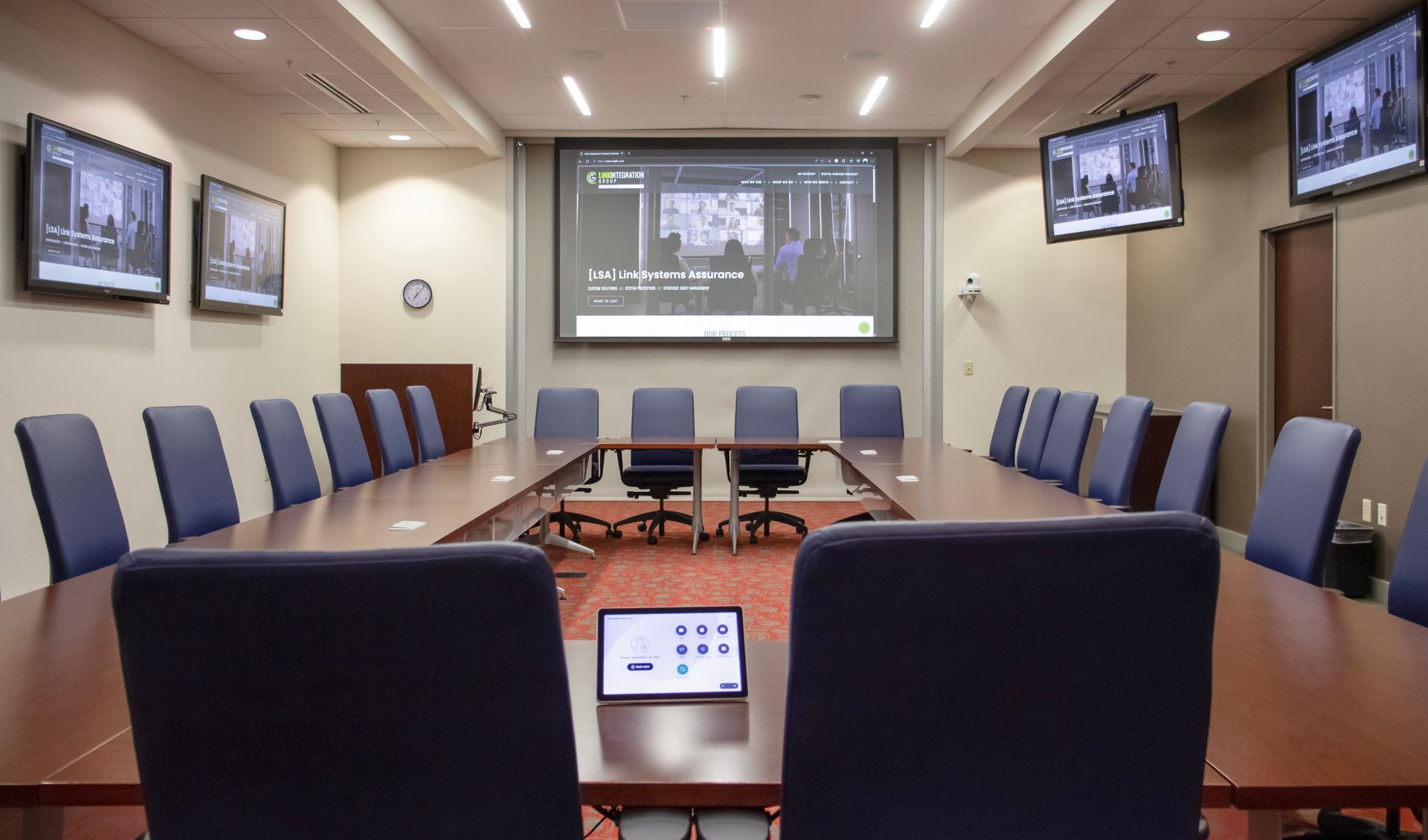
A staff meeting starts at nine. The team walks in, taps Join, and gets right to it. At eleven, a client brings their own laptop and needs to use the same room’s camera, microphone, and display. Both meetings should be easy to start.
Crestron Collab Engine gives organizations a common platform for rooms that need to support different kinds of meetings. You can configure one room for Microsoft Teams Rooms and another for laptop-led meetings and presentations. If you’re planning a commercial AV upgrade, start by asking who typically runs the meeting, what they need to share, and what the room needs to do for them.
What Does Crestron Collab Engine Do in a Meeting Room?
Crestron Collab Engine brings conferencing, content sharing, and room control together in one device. A presenter can plug in a compatible laptop with a single USB-C cable to carry video, audio, and USB data. If they just need to show a few slides from their seat, AirMedia gives them a wireless sharing option.
Room control matters in those first few minutes, too. With built-in Crestron Control, the room can be configured so the display turns on and the shades lower when someone starts a presentation. That gives the presenter fewer things to figure out while everyone is waiting. Decide which actions should happen automatically and which controls people should always be able to find, such as volume and source selection.
Should Your Meeting Room Use Microsoft Teams Rooms or AirMedia?
Microsoft Teams Rooms mode makes sense where employees regularly join scheduled Teams meetings from the room console. AirMedia mode fits spaces where people usually present or host meetings from their own devices.
- Microsoft Teams Rooms mode: A department can join its weekly Teams meeting from the room console with one touch. If a client sends a Zoom invite, an employee can host or join from a laptop using the room’s compatible camera and audio. The system returns to the Teams Rooms experience when the laptop-led session ends.
- AirMedia mode: A training room that different departments and visiting instructors use throughout the week can be set up for laptop-led presentations and calls. The person running the session brings their own device and can use the room’s compatible AV equipment.
The same meeting setup can work in a small huddle room and a larger conference room. The camera, microphone, and display coverage those rooms need may be different. If remote attendees consistently miss what someone says at the far end of the table, check microphone coverage as part of the upgrade.
How Can Collab Engine Share Content Across Screens and Rooms?
Dynamic Canvas helps display multiple sources within a room. Built-in DM NVX on the CCE-4200 can bring in or send out content over the AV network. Both are worth considering wherever people need to see more than one thing at a time or follow a presentation from another space.
Picture an instructor demonstrating a process. With Dynamic Canvas, the room can show the instructions and a live demonstration feed side by side. If attendance spills into an adjacent room, the CCE-4200 can mirror its first display output over the DM NVX network. The layout you choose for the main room helps determine what the overflow audience will see.
Start with what each audience needs to see and where they’ll be sitting. That’s as relevant to a corporate training room as it is to a campus AV project with classrooms and shared teaching spaces. When content needs to travel between rooms, bring AV and IT into the planning conversation early enough to review the network and agree on who will support it.
What Should IT Test Before Rolling Out Collab Engine Across Multiple Rooms?
Pilot the setup in one frequently used room and have employees run through the meetings they hold every week. A room may work fine during a demonstration and still leave a visitor wondering which cable to use or how to share a screen.
- Start a scheduled Teams meeting. Make sure employees can find it, join from the console, and share content once they’re in.
- Try a laptop-led meeting. Test wired and wireless sharing with the devices staff and visitors typically bring. Check that remote participants can hear someone sitting at the far end of the table.
- Walk through the controls. Ask someone who hasn’t seen the room before to start a presentation, adjust the volume, and end the session.
- Choose who will support the system. Decide who will check device status, apply updates, and respond when something stops working.
Crestron’s XiO Cloud platform gives IT a central place to monitor, configure, and update supported devices. Decide who will handle that work internally and where a service option like Link Systems Assurance fits into your support plan.
How Should You Start Your Meeting Room AV Upgrade?
If employees have trouble sharing from laptops or guests spend the first five minutes trying to get a call going, Crestron Collab Engine may be worth considering. It gives presenters a way to share over USB-C or wirelessly through AirMedia, and it lets guests use the room’s compatible camera and audio for a meeting hosted from their laptop.
At Link Integration Group, we can help you test those workflows with the devices people actually bring, see which of your existing equipment you can keep, and decide where Collab Engine makes sense. Request a free AV assessment to talk through what’s slowing down meetings and what would make your rooms easier to use.